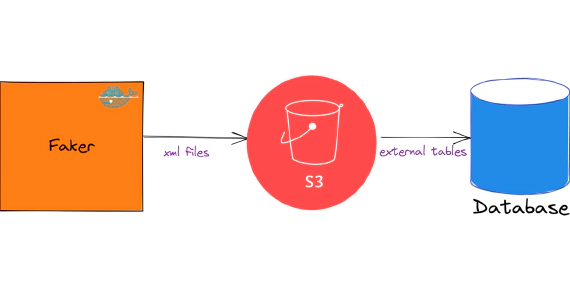
Exploring XML In Snowflake
In this article, we will see how to load and use XML files in snowflake. Code used in this article can be found here. …


In this article, we will see How To Install Discourse In AWS Lightsail. Discourse is modern open source discussion/forum software. AWS Lightsail is an easy-to-use virtual private server (VPS) that offers you everything needed to build an application or website, plus a cost-effective, monthly plan.
Navigate to AWS Lightsail
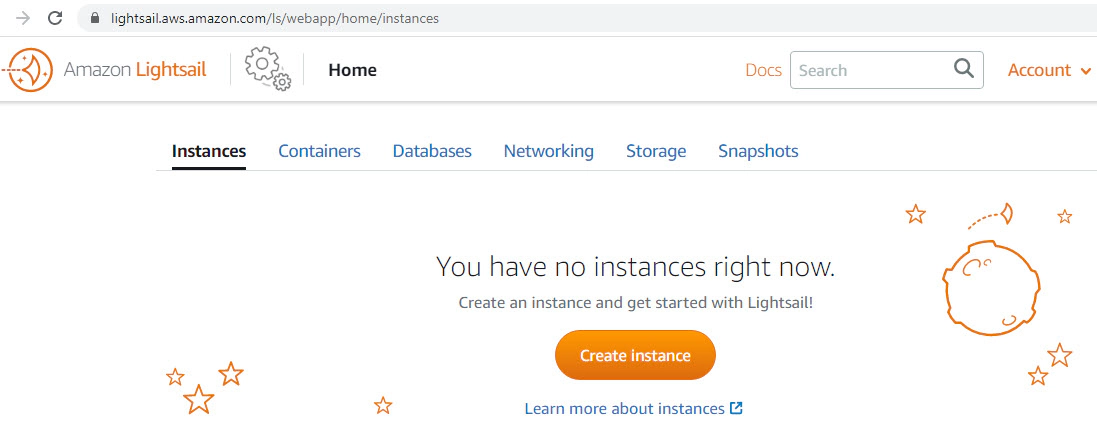
Create an instance
⏩ Select a Region (us-east-1)
⏩ Select a platform (Linux/Unix)
⏩ Select a blueprint (Ubuntu 20.04 LTS)
⏩ Create key pair
⏩ Choose your instance plan (1 GB / 1vCPU / 40 GB SSD)
⏩ Identify your instance
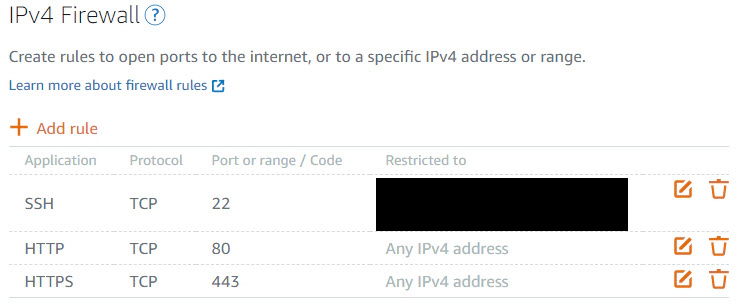
Wait for couple of minutes for the instance to come online. After the instance is online, navigate to networking section and add a rule to open the inbound traffic on HTTPS port 443.
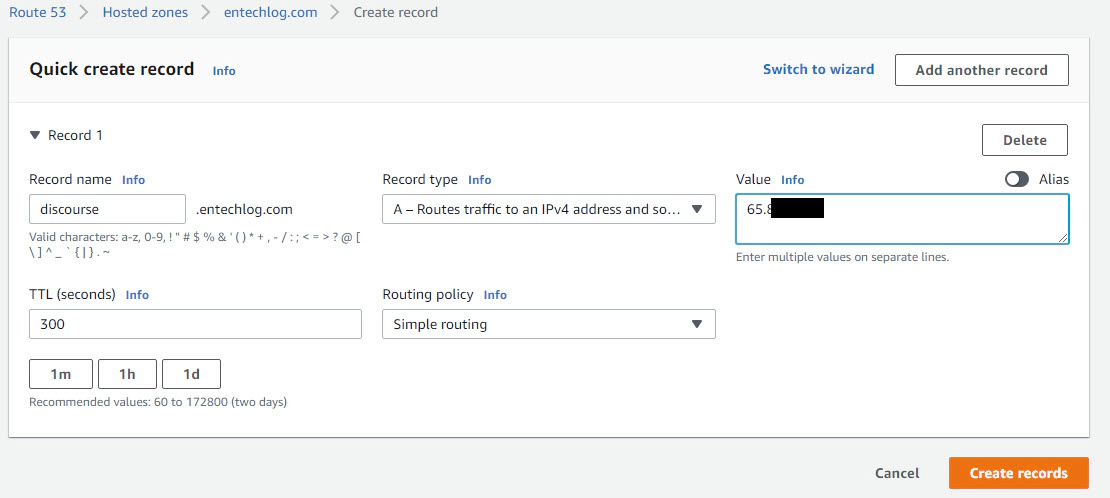
In Route 53, navigate to your hosted zone

Add a record (say discourse.entechlog.com) of record type A using the public IP address of instance created in AWS Lightsail.
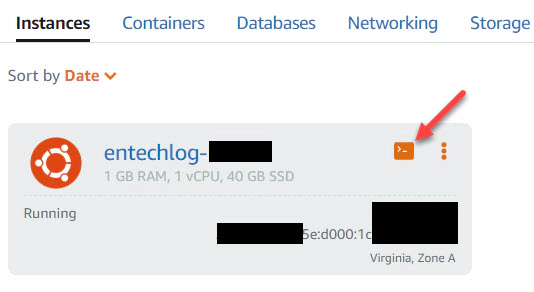
SSH into to the server from the AWS Lightsail web UI
Clone discourse Docker Image into /var/discourse
sudo -s
git clone https://github.com/discourse/discourse_docker.git /var/discourse
cd /var/discourse
Launch the discourse setup
./discourse-setup
Answer the following questions for your subdomain and email server information. It’s good to create an application specific password and configure email using it.
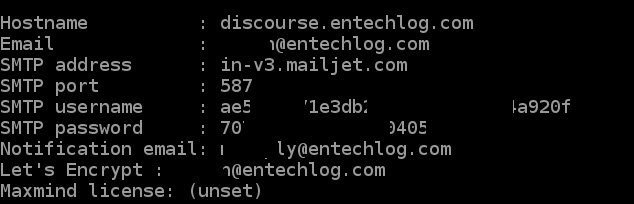
Update /var/discourse/containers/app.yml to change the SiteSetting.notification_email at the bottom of the app.yml to the email address of your domain.

Discourse should be available in the subdomain after the installation finishes.
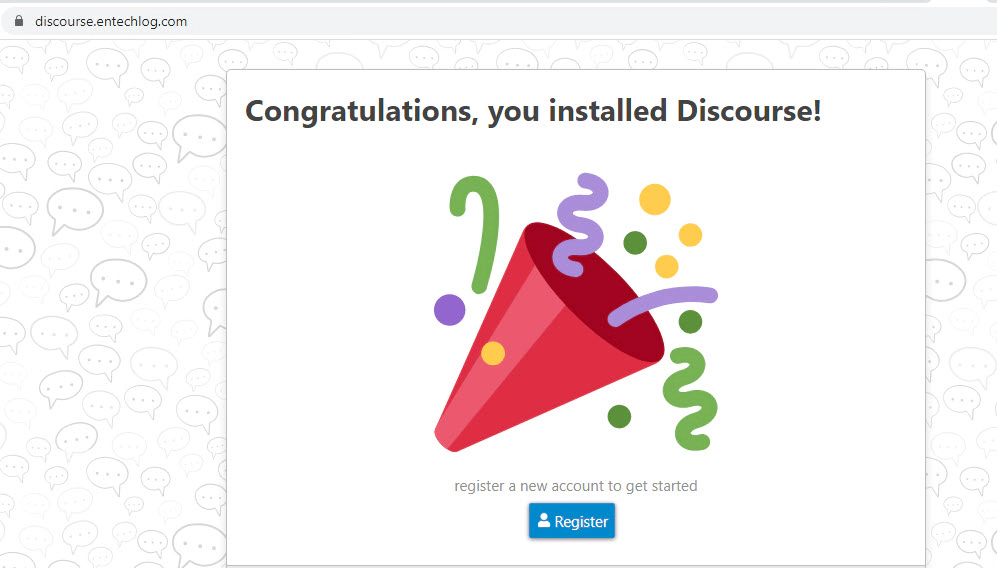
Validate the configuration by running below command
./discourse-doctor
/var/discourse/shared/standalone/log/rails/production.log for any error. Update /var/discourse/containers/app.yml to fix the issue and rebuild the app by running ./launcher rebuild appRegister and verify the admin account for discourse.
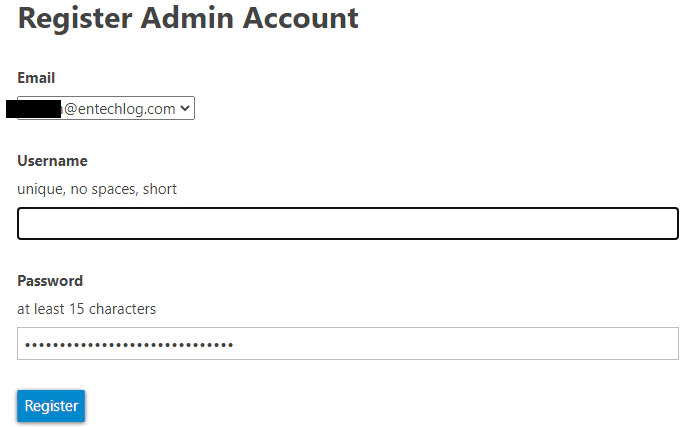
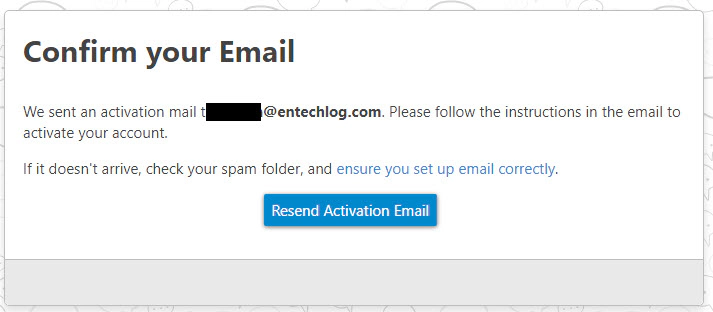
After the verification, follow the on screen instructions to do the initial configuration
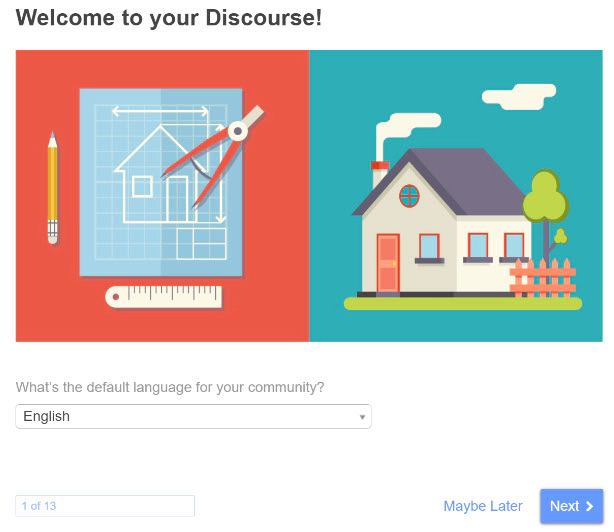
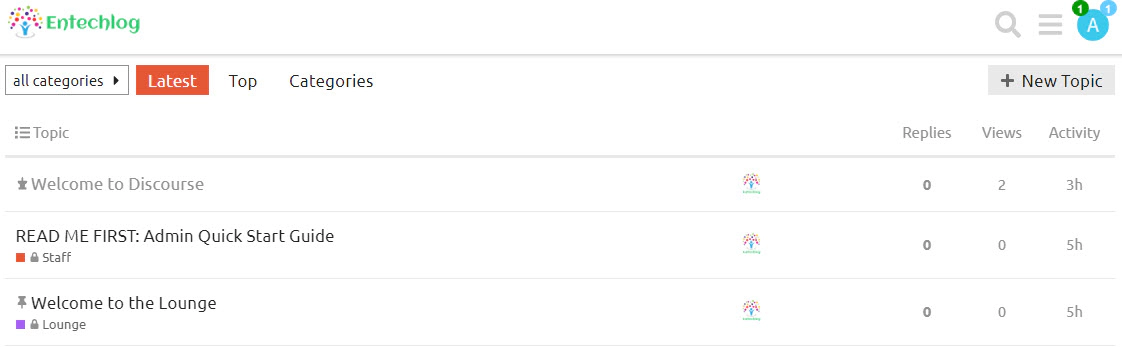
After the intial configuration, you will be routed to discourse landing page
Hope this was helpful. Did I miss something ? Let me know in the comments and I’ll add it in !
In this article, we will see how to load and use XML files in snowflake. Code used in this article can be found here. …
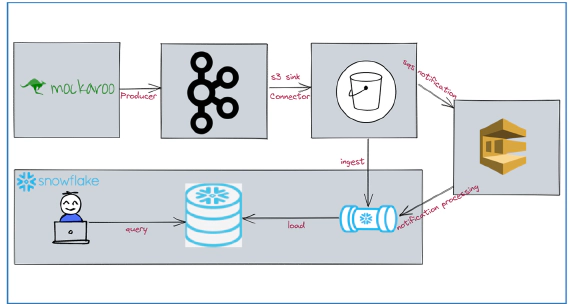
In this article, we will see how to stream data from kafka to snowflake using S3 and Snowpipe. Code used in this article …